.webp)
MLflow Experiment Tracking. Complete Tutorial.
Complete Tutorial MLflow Experiment Tracking with code.


Introduction to MLflow Experiment Tracking
Related Materials
Full code used in this article is here
One inevitable part of the daily work of a Data Scientist is to build ML models. However, you rarely come up with a good model from the very beginning. Usually, creating a good model takes a lot of effort and experiments.
In my career, I have conducted thousands of experiments, if not tens of thousands. And a very common issue with experiments is that you quickly get lost in them.

What was the feature setup that gave me the best score? Did I scale data for that experiment? What were the resulting hyperparameters? What about the search space that I used for the learning rate? Do I even remember what the score was?
These questions appear all the time. I am sure you have been there, and you are not alone, trust me.
If there is a problem, usually there is a solution. And there is a solution created for experiment tracking. In fact, there are many of them.
The most common framework/library for experiment tracking (and, in fact, for the full model management lifecycle) is MLflow. It was one of the first tools (maybe even the first one) in the community that aimed to solve problems with experiment tracking and ML model management.
In this article, we will learn:
- What is the idea behind Experiment Tracking in general
- What MLflow is
- What components does it have
- How to start using MLflow for tracking ML experiments.
- How to select the best ML model from these experiments.
In the following articles, we will also consider how to push ML models to a Model Registry from which you can then serve models to the inference stage of your ML pipelines.
What is ML Experiment Tracking?
Before we go into ML Experiment Tracking with MLflow, if you want a deeper introduction in general, check out my article: Machine Learning Experiment Tracking. Introduction.
Here's how I formulate experiment tracking:
Logging and tracking all the important stuff about your ML experiments so you don't lose your mind trying to remember what you did.
Every time you train a model, a good experiment tracker captures:
- The exact code you ran (Git commits, scripts, notebooks)
- All your hyperparameters and configurations
- Model metrics
- Model weights/files.
- What data did you use, and how did you process it
- Your environment setup (Python versions, packages, etc.)
- Charts and visualizations (confusion matrices, learning curves, etc.)
Instead of having this information scattered across your laptop, three different cloud instances, and that one Colab notebook you can't find anymore, everything lives in one organized place.
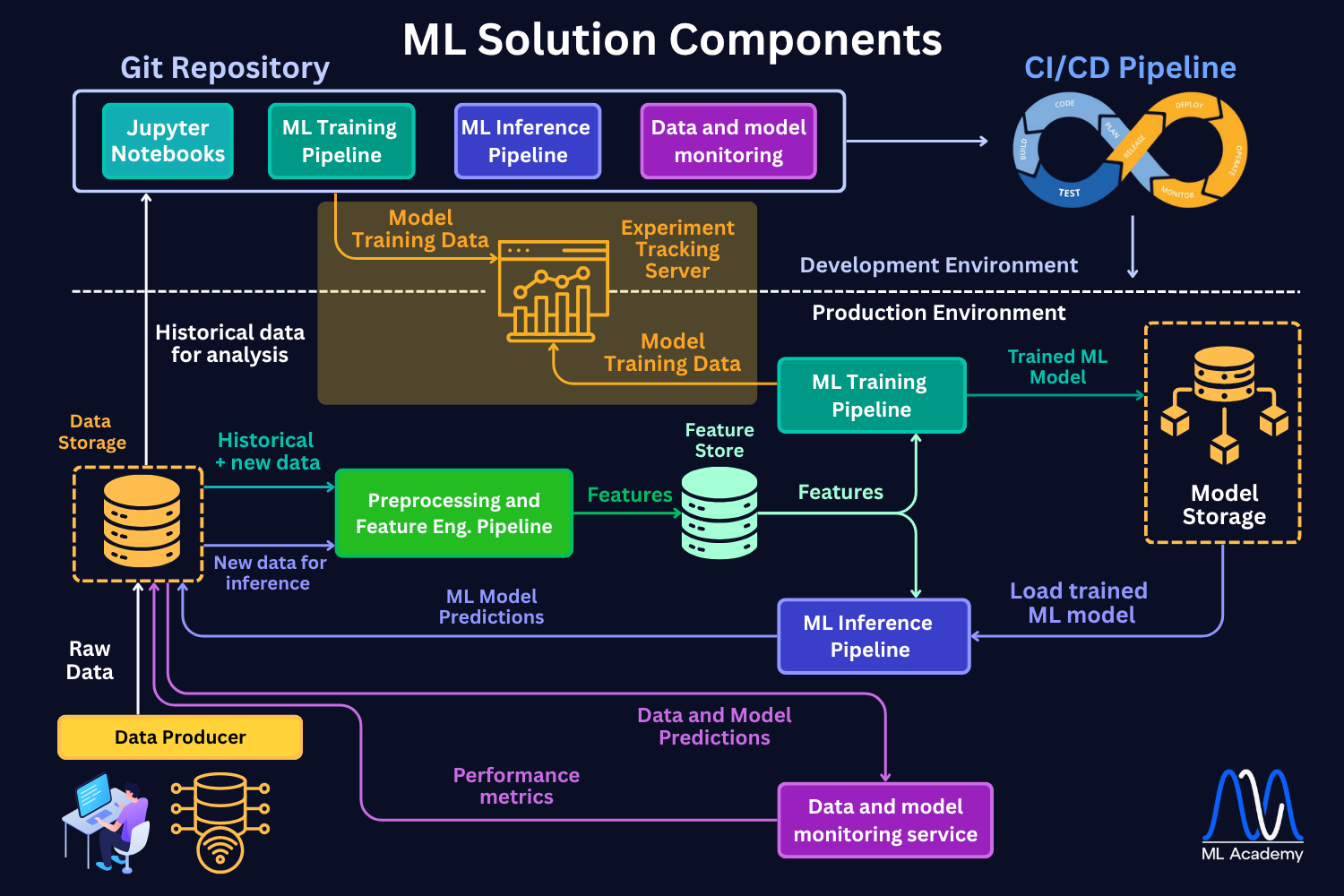
Here's how an experiment tracking server comes into play in the ML Lifecycle. When your workflow is done right, you can link your tracking system with the model registry to be able to push the best model to production. But more importantly, you can track your choice back in any point in time, which is crucial in real-world ML deployments. Things WILL go wrong, but you just need to be prepared.
Main ML Experiment Tracking Use Cases
After building 10+ industrial ML solutions (while not in all of them using experiment tracking - sad face), I have found the following 4 major use cases for using experiment tracking.
1. All Your ML Experiments in One Place
I just like things to be organized. I believe you do it too.
I have several projects where my team and I did NOT use experiment tracking. The result is that the team had their own experiments locally, and it was just very hard to compare them. Not good.
On the other hand, with experiment tracking, all your experiment results get logged to one central repository.
It does not matter who, where, and how they run them; they are just there. Waiting to be analyzed to help you make money with your ML models.
You don't need to track everything, but the things that you track, you know where to find them.
This makes your experimentation process so much easier to manage. You can search, filter, and compare experiments without remembering which machine you used or hunting through old directories.
2. Compare Experiments and Debug Models with Zero Extra Work
When you are looking for improvement ideas or just trying to understand your current best models, comparing experiments is crucial.
Modern experiment tracking systems make it quite easy to compare the experiments.
What I also like a lot is that you can visualize the way the model/optimizer tends to select hyperparameters. It can give you an idea of what the model is converging to.
From there, you might come up with ideas of how the model can be further improved.
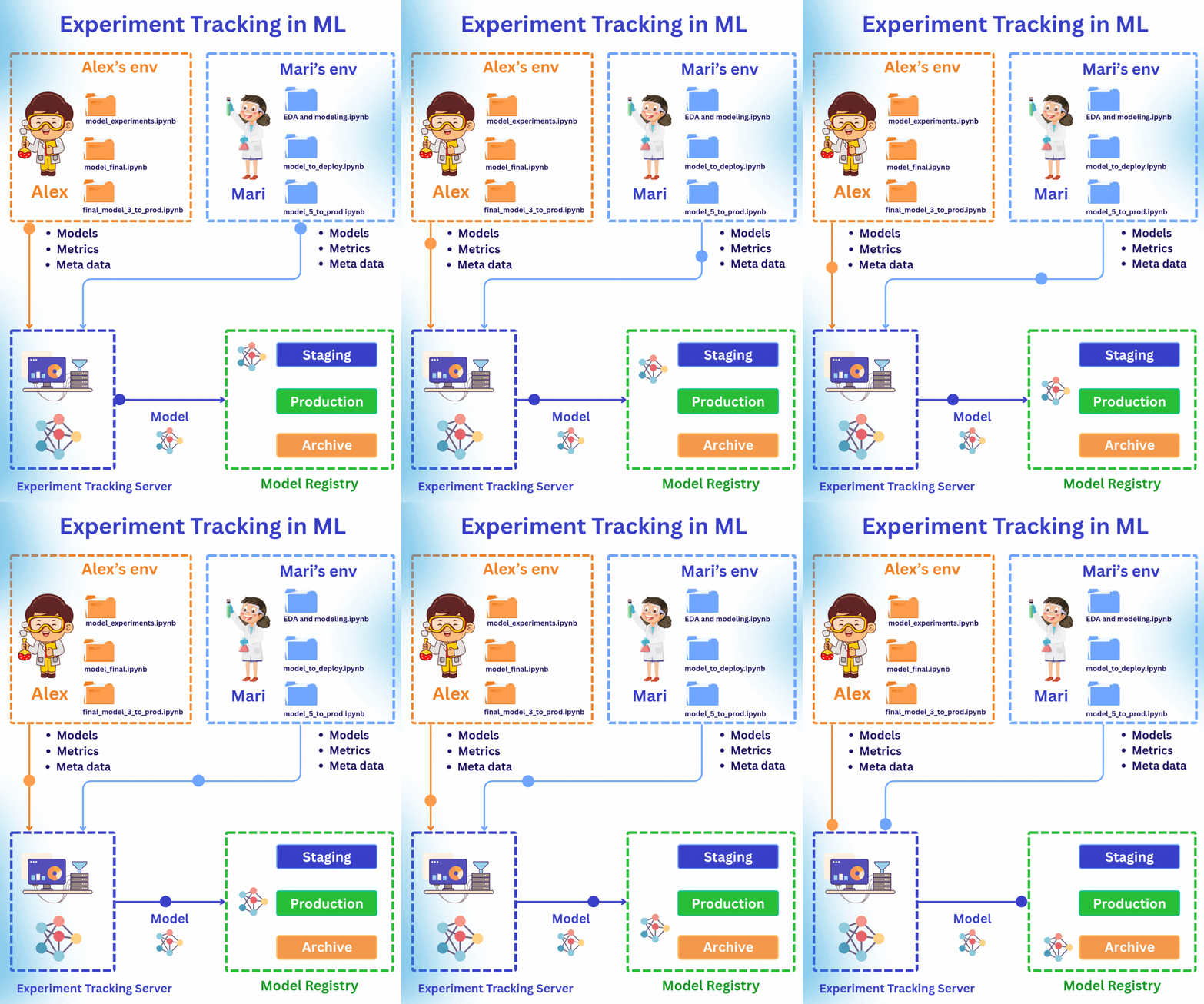
3. Better Team Collaboration and Result Sharing
This point is connected to Point 1.
Experiment tracking lets you organize and compare not just your own experiments, but also see what everyone else tried and how it worked out. No more asking "Hey, did anyone try batch size 64?" in Slack.
Sharing results becomes effortless too. Instead of sending screenshots or "having a quick meeting" to explain your experiment, you just send a link to your experiment dashboard. Everyone can see exactly what you did and how it performed.
4. Monitor Live Experiments from Anywhere
When your experiment is running on a remote server or in the cloud, it's not always easy to see what's happening.
This is especially important when you are training Deep Learning models.
Is the learning curve looking good? Did the training job crash? Should you kill this run early because it's clearly not converging?
Experiment tracking solves this. While keeping your servers secure, you can still monitor your experiment's progress in real-time. When you can compare the currently running experiment to previous runs, you can decide whether it makes sense to continue or just kill it and try something else.
Main components of MLflow experiment tracking
MLflow experiment tracking is a component of the MLflow framework that is responsible for logging parameters, code versions, metrics, and output files when running your machine learning code and for later visualizing the results. MLflow Tracking lets you log and query experiments using Python, REST, R API, and Java API APIs.
In general, the MLflow tracking system can be split into 3 main components:
1. The Database (Experiment Memory)
This is where all your experiment metadata gets stored. It's usually a local file system or a cloud-based database that can handle structured data (metrics, parameters) and unstructured data (images, model files, plots).
2. The Client Library (Logging Python Library)
This is the Python library you integrate into your training code. Combined with ML Tracking Server processes, it's what actually sends your experiment data to the database.
3. The Web Dashboard (User Interface)
This is the web interface where you visualize, compare, and analyze all your experiments. This component makes it convenient to take a closer look at your result and draw conclusions about which parameters or models are best to choose for the deployment and what parameter trends are with respect to the model accuracy (e.g., you can answer the question: "Do deeper Gradient Boosting trees give better scores for the particular dataset?").

What exactly does MLflow store?
There are 2 main data types that MLflow stores:
1. MLflow entities - model parameters, metrics, tags, notes, runs, metadata. The entities are stored in a backend store.
2. Model artifacts - model files, images, plots, etc. The artifacts are stored in artifact stores.
There are different ways in which these 2 data object types are stored and how the Python Client library can be used. The MLflow documentation describes 6 main scenarios.
In this article, we will cover the 2 most common ones (Scenario 3 and 4 in the documentation). Reading the documentation can be useful, but below we will make things clearer than they are described in the documentation, so please, follow along!
Scenario 1 (Scenario 3 in docs) - MLflow on localhost with Tracking Server
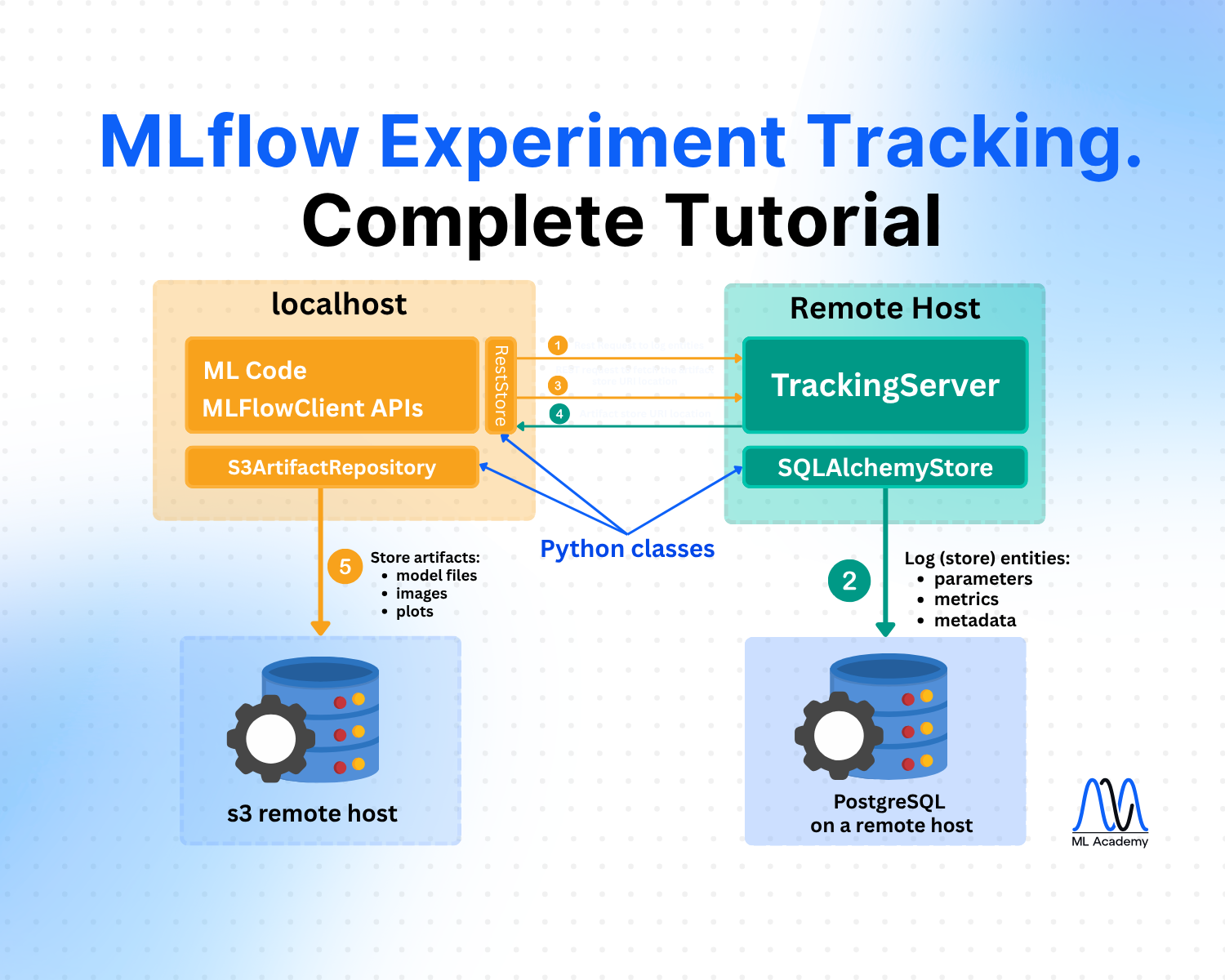
In this scenario, a Data Scientist stores all the files locally in the machine on which he runs the code. The figure below schematically shows this approach.

Here, we see 3 main parts:
1. ML code and MLFlowClient APIs (yellow box).
This is where you run your code and make experiments. Here, by using MLFlow Library Python Class RestStore, you can communicate with a Tracking Server (more on it below), which tells you what the URI (Uniform Resource Identifier, e.g., users:/alex/mlruns/) is where the artifacts are stored.
In case of storing it locally, this is a folder somewhere on your machine. By default, this is the folder ./mlruns in the directory where you run your code.
When the MLFlowClient gets this information, it then uses the LocalArtifactRepository class to store the artifacts (files) in this directory (blue database image).
2. Tracking Server (green box).
Tracking Server is a running process on your local machine (by the way, you can see that all the boxes are inside a green shadow box, which describes localhost - your local machine). This Server (process) communicates with the MLFlowClient through REST requests (as described above) to supply the required information for the artifact storage.
What it also does is it uses the FileStore Python class to store the entities (parameters, metrics, metadata, etc.) in the local storage directory (mlruns folder).
3. Local Data Store (blue database icon)
In this scenario, this is just your local directory, which is by default created in the directory where you run your code. Here, the folder mlruns is created, where both artifacts (models) and entities (metadata) are stored.
What is a typical use case for this local storage setup?
This setup is often used when Data Scientists run their experiments locally and do not bother with sharing the results with their team members. Also, in this case, you need to set up a separate process to send the resulting model to the deployment infrastructure. In the worst case, you should also upload the model manually.
Pros:
- Quick setup, no infrastructure required
- User does not need any knowledge of the remote storage setup
Cons:
- Hard to share results with other team members
- Hard to deploy the selected models
Scenario 2 (Scenario 4 in docs) - MLflow with remote Tracking Server, backend, and artifact stores
In this case, you still run your experiments locally. However, the Tracking Server, the artifact store, and the backend store are running on remote servers, e.g., on AWS.
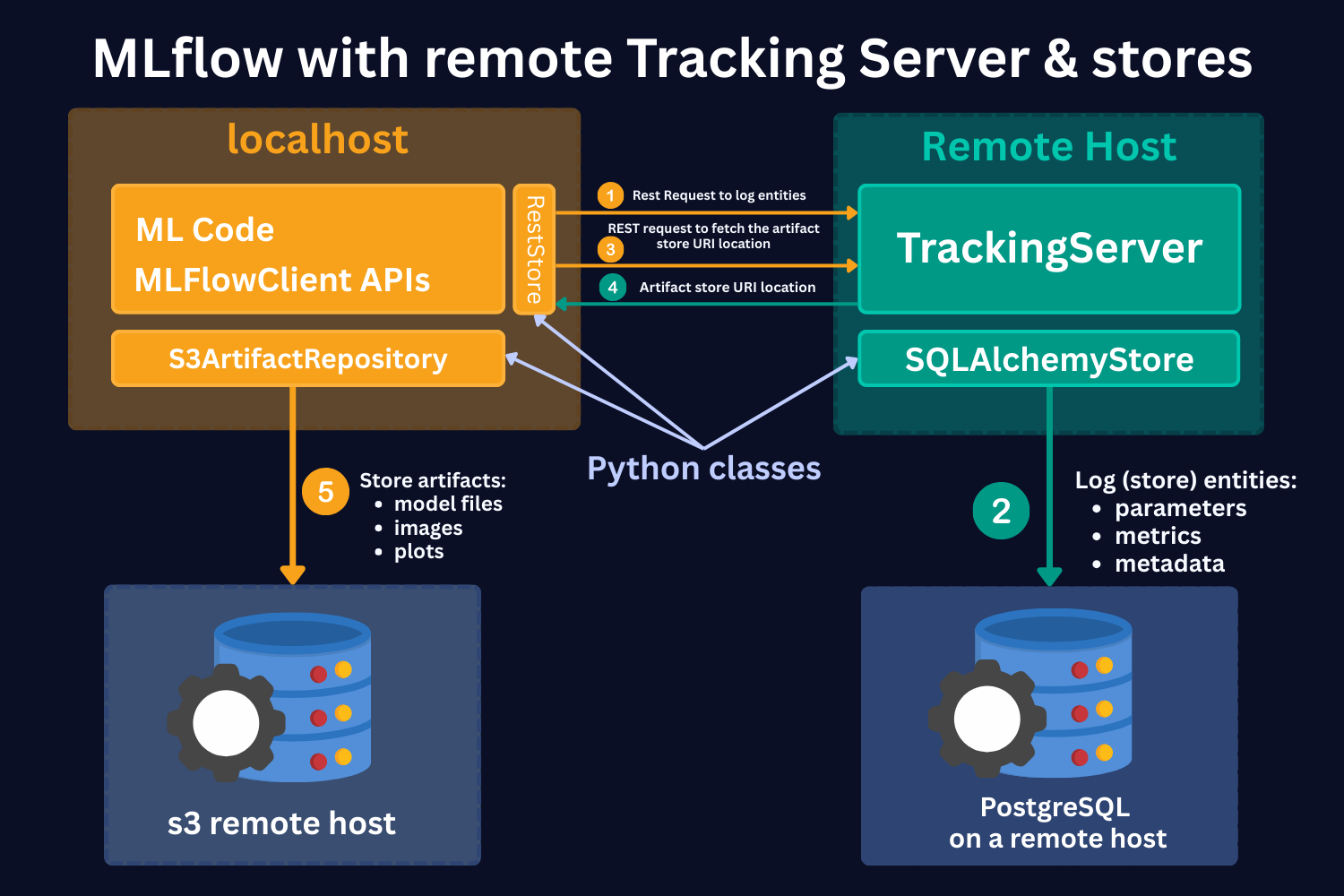
Here, we see the same 4 main parts:
1. ML code and MLFlowClient APIs (yellow box).
As in the local case, by using MLFlow Library Python Class RestStore, you can communicate with a Tracking Server (more on it below), which tells you what the URI (Uniform Resource Identifier) is where the artifacts are stored.
However, in this case, you store artifacts on the S3 remote host (as an example). Note that it should not necessarily be an S3 store. It can be any other remote storage location, for instance, Azure Blob storage.
In case of S3 bucket storage, MLflow uses the s3ArtifactRepository class to store artifacts.
2. Tracking Server (green box).
Tracking Server is a running process on a remote host. This Server (process) communicates with the MLFlowClient through REST requests (as described above) to supply the required information for the artifact storage.
It also stores the mlruns entities. However, in this case, it uses the SQLAlchemyStore class to communicate with SQL-like remote databases, for instance, PostgreSQL.
3. S3 remote host Data Store (left-hand side blue database icon).
This is a remote store for mlruns artifacts. As mentioned, this should not necessarily be S3 buckets. It can be any remote/cloud-based storage system.
4. PostgreSQL remote host Data Store (right-hand side blue database icon).
This is a remote storage for mlruns entities. This is an SQL-like database, for instance, PostgreSQL or SQLite.
Hands-on Example of MLflow Experiment Tracking
Full code implementation is here
Important Concepts of MLflow
Before starting with the code, let's introduce some important concepts.
Runs
MLflow Tracking is organized around the concept of runs, which are executions of some piece of data science code, for example, a single python train.py execution. Each run records metadata (various information about your run, such as metrics, parameters, start and end times) and artifacts (output files from the runs, such as model weights, images, etc).
Models
Models represent the trained machine learning artifacts that are produced during your runs. Logged Models contain their own metadata and artifacts similar to runs.
Experiments
Experiments group together runs and models for a specific task. You can create an experiment using the CLI, API, or UI. The MLflow API and UI also let you search for experiments.
Running the first MLflow experiment
Now, let's see how it works in practice.
To see the implementation of MLflow experiment tracking in practice, we will build ML models and conduct different experiments on a simple Wine Quality Dataset. It contains measurements of common chemical properties—like acidity, alcohol, sulfur content, and density—for both red and white Portuguese “Vinho Verde” wines, along with a quality rating. It features 11 numeric input variables, a wine type identifier, and a quality score
The dataset has just 1,143 rows and 12 features, so we can run our experiments quickly and test different MLflow features efficiently.
In this tutorial, we will use Scenario 1 from the discussion above. We will run our experiments and their results locally, and we will use the Tracking Server to store experiment entities.
Again, the full code of the tutorial is available here.
The first thing that we need to do is to start the ML Tracking Server. To do that, in the terminal, navigate to the notebook folder and run in the terminal (command line):
mlflow server --host 127.0.0.1 --port 8080
This is what it does:
- Starts the MLflow Tracking Server
A dedicated process that manages and serves your MLflow experiments. - Provides a Web UI
Accessible at http://127.0.0.1:8080 (or localhost:8080), where you can browse experiments, runs, parameters, metrics, and artifacts. - Exposes a Tracking API Endpoint
Other scripts or notebooks can log directly to this server if you run mlflow.set_tracking_uri("http://127.0.0.1:8080") in the code. - MLflow automatically creates a folder mlruns/ and mlartifacts/ in your working directory.
Inside mlruns/, it creates subfolders for:- each experiment (default is 0)
- each run within that experiment
Now, if we go to http://127.0.0.1:8080, we can see an MLflow UI with the default experiment created with no runs because we have not created any runs yet.

Before we create our first experiment, in the notebook, we set the tracking URI by running the command:
mlflow.set_tracking_uri(uri="http://127.0.0.1:8080")
print("Current Tracking URI:", mlflow.get_tracking_uri())
What it does:
1. It tells your MLflow client (your script/notebook) where to send all logging data (experiments, runs, params, metrics, artifacts).
2. Since our host is local, it will still write to mlruns locally, but here you can configure a remote host URI.
Then, we read the data, split it into training, validation, and test sets, and train a simple LASSO model with a regularization hyperparameter of alpha = 0.1.
# Load datasets
df = pd.read_csv('WineQT.csv', sep=',')

# Split the data into training, validation, and test sets
train, test = train_test_split(df, test_size=0.25, random_state=42)
x_train = train.drop(["quality"], axis=1).values
y_train = train[["quality"]].values.ravel()
x_test= test.drop(["quality"], axis=1).values
y_test = test[["quality"]].values.ravel()

# Split the data into training and validation sets
x_train, x_val, y_train, y_val = train_test_split(
    x_train, y_train, test_size=0.2, random_state=42
)

# Setting hyperparameter
alpha = 0.1
model = Lasso(alpha=alpha)
model.fit(x_train, y_train)

# Predicting
y_pred_val = model.predict(x_val)
y_pred_test = model.predict(x_test)

# Calculating metrics
rmse_val = np.sqrt(mean_squared_error(y_val, y_pred_val))
rmse_test = np.sqrt(mean_squared_error(y_test, y_pred_test))
print(f'RMSE val = {rmse_val}, RMSE test = {rmse_test}')
What we have just done is we conducted an experimental run! We set a hyperparameter, trained a model, and got validation and test scores (happy face). Now, our job is to log this to MLflow.
To do that, we need to run the command:
# Set the experiment name - it also creates an experiment if it doesn't exist
mlflow.set_experiment("Wine Quality Regression")
Now, on the UI (http://127.0.0.1:8080), we will see that the experiment is created.
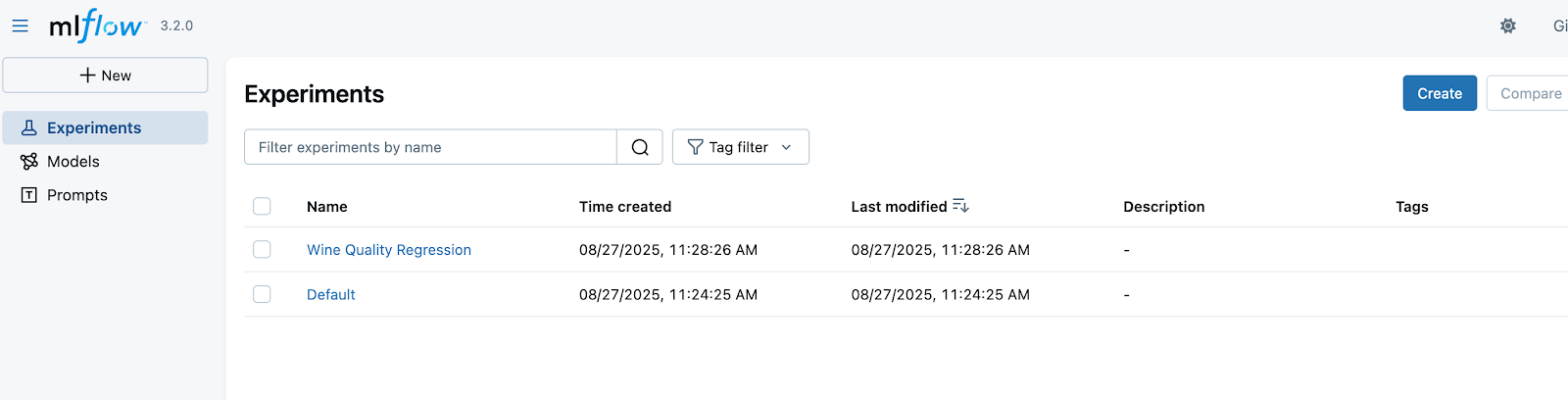
Now, all we need to do is log the parameters, metrics, and the model. Here is the full code:
# Setting hyperparameters
params = {
    'alpha': model.alpha
}

# Start an MLflow run
with mlflow.start_run(run_name='lasso_baseline'):
    # Log the hyperparameters
    mlflow.log_params(params)
    # Log the loss metric
    mlflow.log_metric("rmse_val", rmse_val)
    mlflow.log_metric("rmse_test", rmse_test)
    # Set a tag that we can use to remind ourselves what this run was for
    mlflow.set_tag("model_version", "baseline")

    model_name = "wine_model_lasso"
    # Log the model
    model_info = mlflow.sklearn.log_model(
        sk_model=model,
        name=model_name,
        input_example=x_train,
    )
Now, in the UI, we can see that our ml run is logged!

We can see the name of the model "wine_model_lasso" which we specified in the code above. Now, if we click the run, we can see more information about it.

Here are some details to notice:
🔹 Metadata (Run Details)
1. Run name: lasso_baseline → descriptive name helps identify what this run was about.
2. Experiment ID & Run ID: unique identifiers that make runs reproducible and traceable.
3. Created by: the user who launched it.
3. Source: points to the script/notebook used (ipykernel_launcher.py).
Why it matters: Always give runs meaningful names and tags (model_version: baseline) so you can find them later when comparing models.
🔹 Tags
model_version = baseline
Why it matters: Tags are a simple but powerful way to label runs (e.g., baseline, tuned, production_candidate). This makes searching and filtering much easier when you have hundreds of runs.
🔹 Parameters and metrics
We see all the parameters and metrics that we logged. This will then help us to understand the model performance for the specific set of hyperparameters if we need to use it.
Along with parameters and metrics, MLflow automatically saves artifacts from each run.
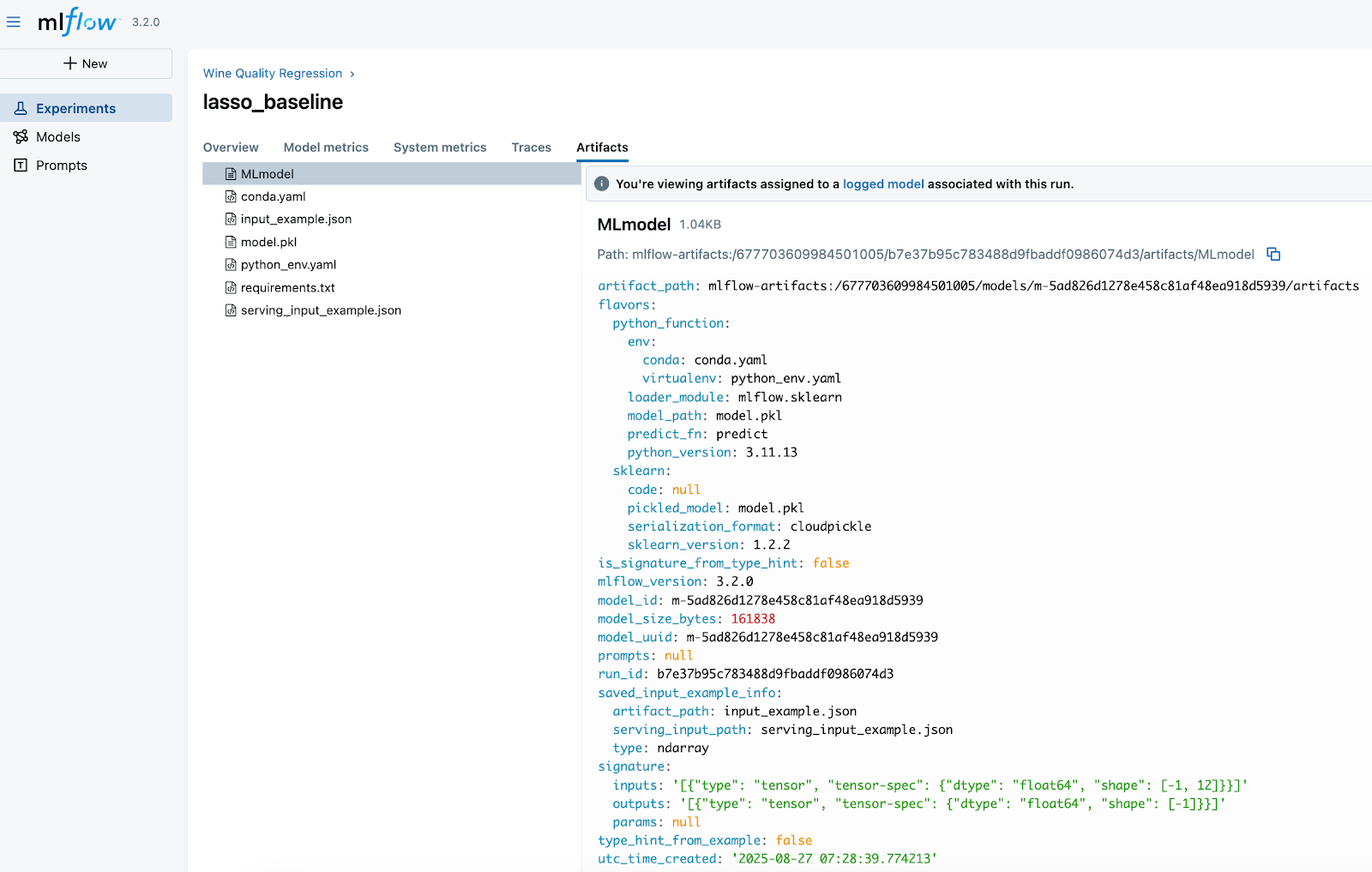
In this run (lasso_baseline), we log the following artifacts:
- MLmodel
A metadata file that defines how to load and use the model. This file is critical - it les MLflow reload the model consistenly across environments.- Describes the model “flavors” (python_function for universal loading, sklearn for framework-specific).
- Points to the environment files (conda.yaml, python_env.yaml).
- Specifies how predictions should be made (predict_fn).
- model.pkl
The serialized scikit-learn Lasso model — the actual trained object you can load back into Python. - conda.yaml / python_env.yaml / requirements.txt
Captures dependencies (Python version, libraries, package versions). These ensure reproducibility and eliminate “works on my machine” issues. - input_example.json / serving_input_example.json
Example input data for the model. This is useful for serving, validation, and making sure consumers know the expected input format.
Note that MLflow assigns every logged model a unique identifier, which we see in the MLmodel file - model_id and model_uuid
- This UUID is globally unique for that model instance.
- It guarantees that even if two models share the same name (e.g., lasso_baseline), MLflow can still distinguish them.
- The UUID stays constant for the life of that model version and also appears inside the artifact_path, making the model traceable back to the exact run and experiment that produced it.
In production, we'll deploy by model ID/UUID, not just by name, to avoid ambiguity if new versions are created.
Autolog
In the example above, we logged the parameters manually. However, in MLflow there is Auto-logging functionality. This feature allows you to log metrics, parameters, and models without the need for explicit log statements - all you need to do is call mlflow.autolog() before your training code. Auto-logging supports popular libraries such as Scikit-learn, XGBoost, PyTorch, Keras, Spark, and more.
In this tutorial, we will not use autolog because I want to show you all the steps as clearly as possible.
Also, while autolog seems like a nice feature, it has a big caveat. Often, you run a lot of experiments, but you don't want to log them all because some of them are just quick trials. On top, if you log all the experiments and runs, the Tracking Server UI can become messy very quickly. Personally, I rarely use auto-logging for serious projects, but it’s definitely a feature to know about and can be very convenient in the right context.
Running MLflow experiments with different models
Now, let's make our code a bit more modular, so we can efficiently run experiments for different models without code repetition. We make 2 functions: train_model and log_run.
def train_model(df: pd.DataFrame, params: dict, model='Lasso'):
    """
    Train a model and return the metrics
    """
    # Split the data into training, validation, and test sets
    train, test = train_test_split(df, test_size=0.25, random_state=42)
    x_train = train.drop(["quality"], axis=1).values
    y_train = train[["quality"]].values.ravel()
    x_test= test.drop(["quality"], axis=1).values
    y_test = test[["quality"]].values.ravel()

    # Split the data into training and validation sets
    x_train, x_val, y_train, y_val = train_test_split(
        x_train, y_train, test_size=0.2, random_state=42
    )

    if model == 'Lasso':
        model = Lasso(**params)
    elif model == 'CatBoost':
        model = CatBoostRegressor(**params)
    else:
        raise ValueError(f"Model {model} not supported")

    # Fitting the model
    model.fit(x_train, y_train)
    # Predicting
    y_pred_val = model.predict(x_val)
    y_pred_test = model.predict(x_test)

    # Calculating metrics
    rmse_val = np.sqrt(mean_squared_error(y_val, y_pred_val))
    rmse_test = np.sqrt(mean_squared_error(y_test, y_pred_test))
    print(f'RMSE val = {rmse_val}, RMSE test = {rmse_test}')
    return model,rmse_val, rmse_test
Here's the log_run().
def log_run(
        run_name: str,
        params: dict,
        metrics: dict,
        tags: dict,
        trained_model,
        model_type='Lasso',
        input_example=None,
        registered_model_name=None):
    """
    Log a run to MLflow
    """
    mlflow.log_params(params)
    mlflow.log_metrics(metrics)
    mlflow.set_tag("model_version", run_name)
    mlflow.set_tags(tags)

    if model_type == 'Lasso':
        # Log sklearn model
        model_info = mlflow.sklearn.log_model(
            sk_model=trained_model,
            name="wine_model_lasso",
            input_example=input_example,
            registered_model_name=registered_model_name,
        )
    elif model_type == 'CatBoost':
        # Log CatBoost model
        model_info = mlflow.catboost.log_model(
            cb_model=trained_model,
            name="wine_model_catboost",
            input_example=input_example,
            registered_model_name=registered_model_name,
        )
    else:
        raise ValueError(f"Model type {model_type} not supported")

    return model_info
Now, let's run the code for the LASSO model first, so we can start comparing the experiments for the same model type:
# Setting hyperparameters

lasso_params = {
    'alpha': 0.1,
    'max_iter': 1000,
    'random_state': 42
}

# Train the model
trained_model, rmse_val, rmse_test = train_model(df, lasso_params, model='Lasso')

# Start an MLflow run
with mlflow.start_run(run_name='lasso_baseline'):
    # Prepare metrics and tags
    metrics = {
        'rmse_val': rmse_val,
        'rmse_test': rmse_test
    }

    # Let's add some tags to the run
    tags = {
        'model_version': 'baseline',
        'experiment_type': 'regression',
    }

    # Log everything using our function
    model_info = log_run(
        run_name="lasso_baseline",
        params=lasso_params,
        metrics=metrics,
        tags=tags,
        trained_model=trained_model,
        model_type='Lasso',
    )
We can then see that we created another run for the Wine Quality Regression Experiment. Now, we can select them and press Compare.
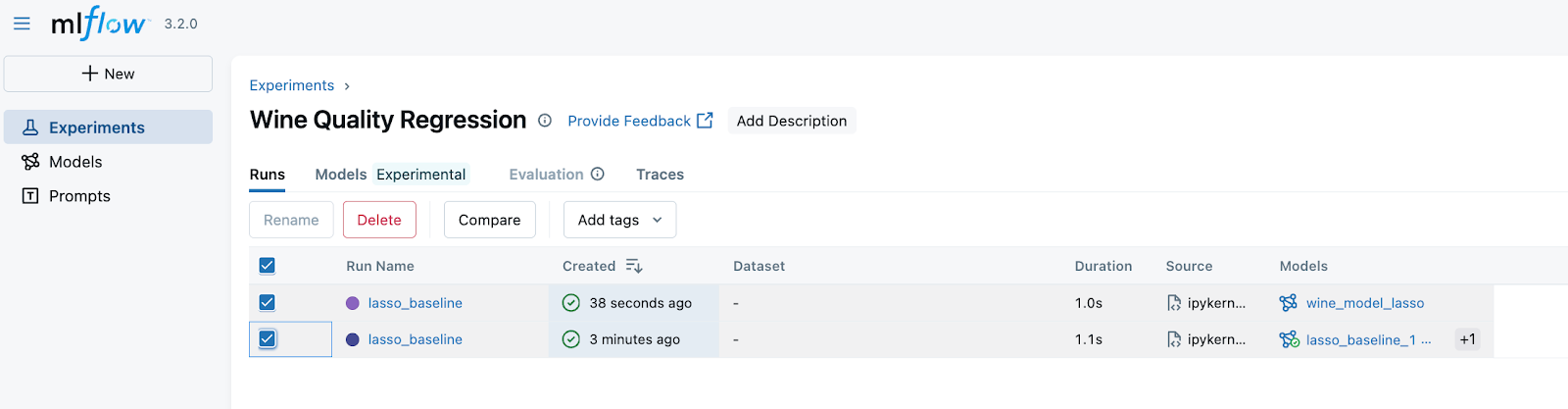
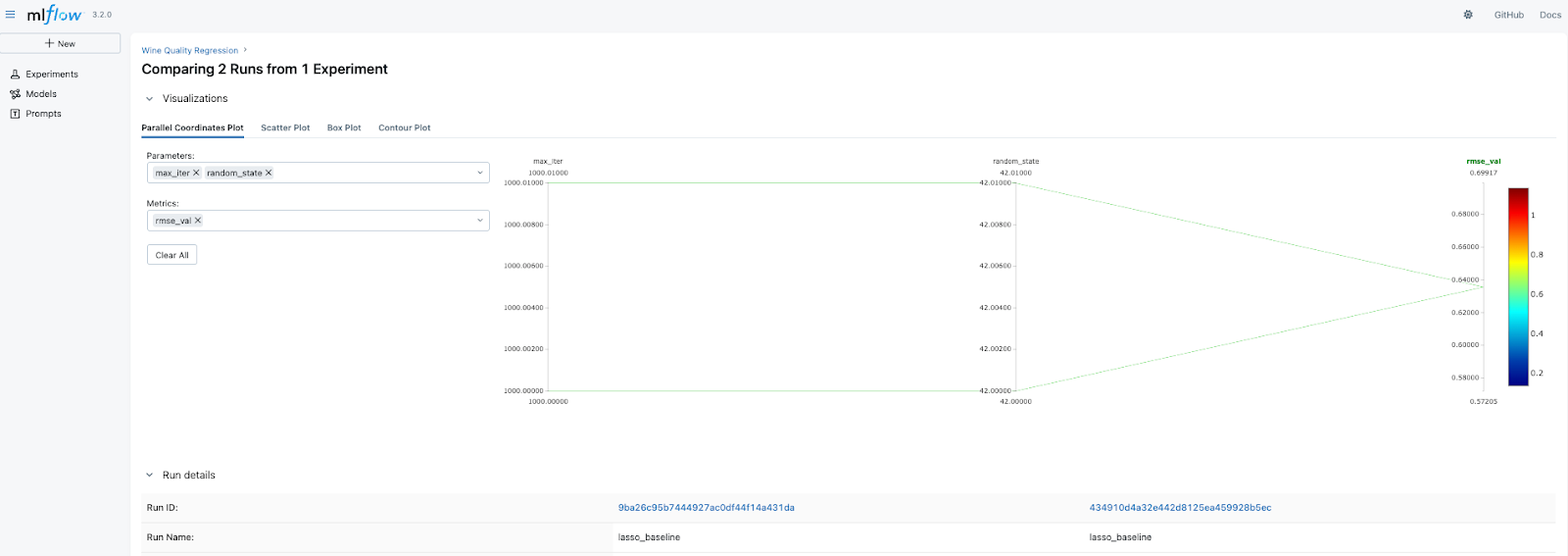
On the next page, we see the comparison of the RMSE metric. Since we have run everything with the same parameters, obviously, the results are the same. However, you can note that at the bottom of the figure, despite having the same run names and even the metrics, the Run IDs are different, so we can select a particular name based on this ID.
Now, let's run and log an experiment with a CatBoost model.
# Setting hyperparameters for CatBoost
catboost_params = {
    'iterations': 100,
    'learning_rate': 0.1,
    'depth': 6,
    'random_seed': 42,
    'verbose': False
}

# Train the model
trained_model, rmse_val, rmse_test = train_model(df, catboost_params, model='CatBoost')

# Start an MLflow run
with mlflow.start_run(run_name='catboost_baseline'):
    # Prepare metrics and tags
    metrics = {
        'rmse_val': rmse_val,
        'rmse_test': rmse_test
    }

    tags = {
        'model_version': 'baseline',
        'experiment_type': 'regression',
        'data_version': 'v1',
        'algorithm': 'gradient_boosting'
    }

    # Log everything using our function
    model_info = log_run(
        run_name="catboost_baseline",
        params=catboost_params,
        metrics=metrics,
        tags=tags,
        trained_model=trained_model,
        model_type='CatBoost',
    )
Now, we can compare 3 different experimental runs - 2 LASSO and 1 CatBoost. To do that, select all the runs and press Compare as we have done above. Since the parameters are different for the models, the visual comparison of parameters might not tell much. However, we can compare the validation and test RMSE.

Here, we see that CatBoost outperformed LASSO, which is expected. But what is most important is that now you have a powerful tool to quickly compare the experiments and then select the best model to be deployed or to be taken for future experiments.
Finding the best model using MLFlowClient
Up to now, we could find the best model manually using the UI, which is great. However, when developing ML pipelines and registering the best model to be deployed, we need to be able to find this model programmatically. Here's how to do that.
First, we need to find the experiment ID for which we want to select the best models. We can do that using search_experiments() method.
# Get experiment by name
experiment_name = "Wine Quality Regression"
experiment = mlflow.get_experiment_by_name(experiment_name)

if experiment:
    experiment_id = experiment.experiment_id
    print(f"Experiment '{experiment_name}' has ID: {experiment_id}")
else:
    print(f"Experiment '{experiment_name}' not found")
This should give you something like:
"Experiment 'Wine Quality Regression' has ID: XYZ"
As we know the experiment ID, we can check what the top models are for this experiment and select the best model. To select the best model, we can just select the one at the top row of the resulting top_models dataframe. In our case, this is the CatBoost model.
# Find high-performing models across experiments
top_models = mlflow.search_logged_models(
    experiment_ids=[str(experiment_id)],
    filter_string="metrics.rmse_test < 0.9",
    order_by=[{"field_name": "metrics.rmse_val", "ascending": True}],
)
best_model = top_models.iloc[0]
best_model
This is the outcome example
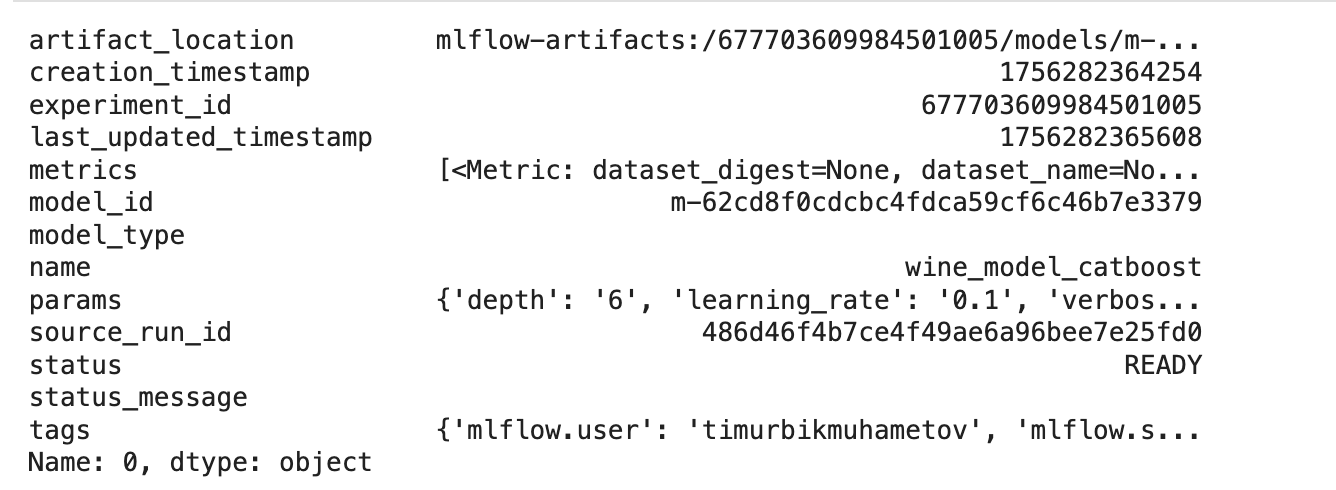
Now that we have selected the best model, we can load it and make predictions.
# Load the best model for inference
loaded_model = mlflow.pyfunc.load_model(f"models:/{best_model.model_id}")
y_pred = loaded_model.predict(x_test)
rmse_test = np.sqrt(mean_squared_error(y_test, y_pred))
print(f"RMSE on test set: {rmse_test}")
That's great! Now, we have a powerful tool to store and find the best models among any number of runs! Moreover, we can now use it in ML production pipelines because we can do this programmatically.
However, in most cases, we need to go beyond logging basic entities such as parameters and metrics. Also, within 1 run, we often want to test multiple different parameters for an ML model, e.g., perform hyperparameter optimization.
To track such experiments efficiently, we can use child runs.
What Are MLflow Parent and Child Runs?
MLflow tracks experiments as named groups where all your related runs live. As we have seen up to now, each "run" is one training session where you log parameters, metrics, and artifacts. Parent and Child Runs add a hierarchical layer to this setup.
Here's a real-world example: You're experimenting with different deep learning architectures. Instead of having all your runs jumbled together:
- Each architecture (CNN, ResNet, Transformer) becomes a parent run
- Every hyperparameter tuning iteration becomes a child run nested under its parent
Boom. Instant organization.
Here's a schematic representation of the parent and child runs based on LASSO and Catboost Baseline Model runs that we conducted in Part 1 of the tutorial.
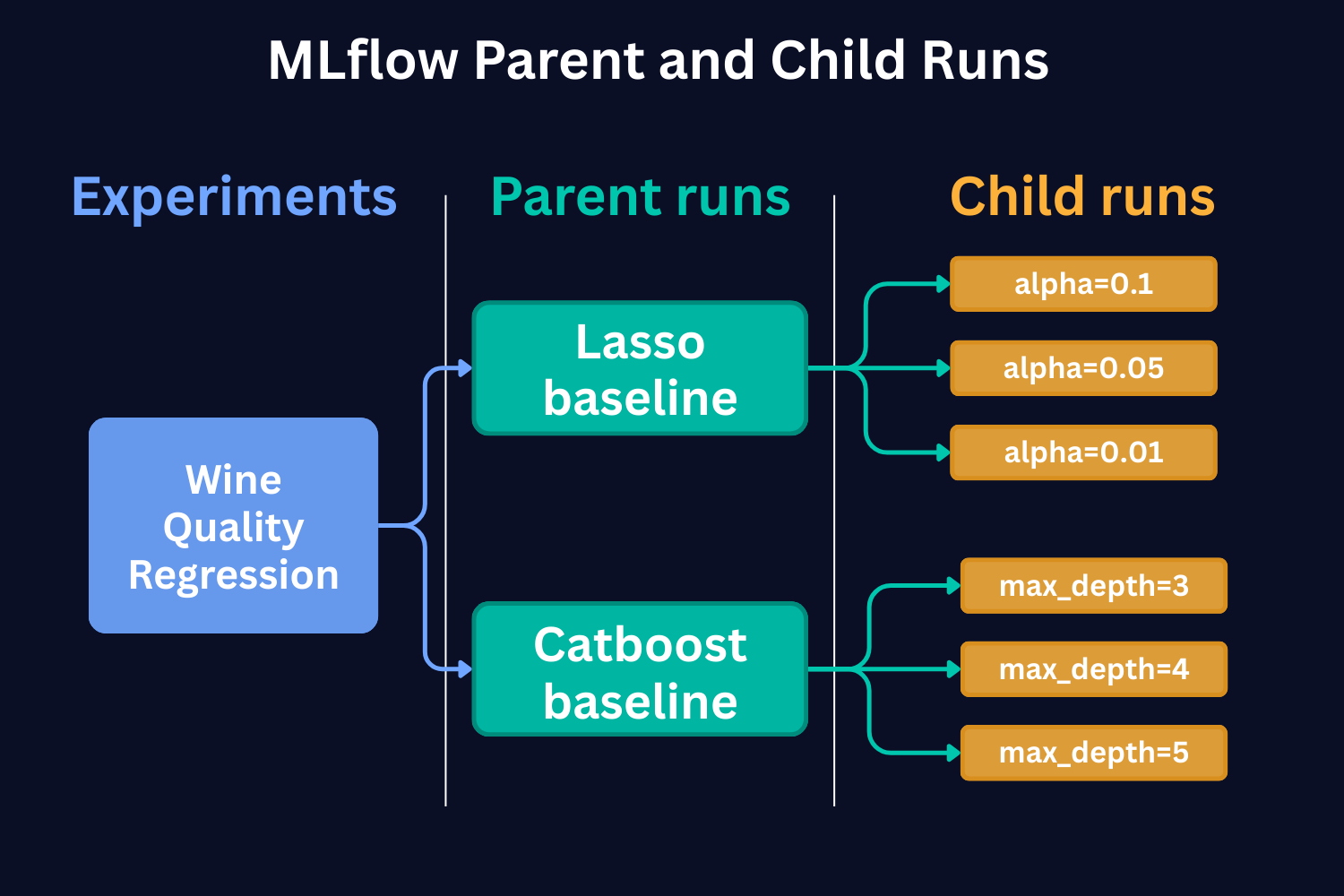
In Part 1 of the tutorial, we conducted the runs with just one set of hyperparameters. But if we were to run with different hyperparameters and compare them to each other, child runs would be the way to go. As we see from the figure above, each child run represents a single model training run with a different value of the hyperparameter.
In the case of Catboost, this would be a different SET of hyperparameters. In the figure, for the sake of simplicity, we show that each run has only a different max_depth hyperparameter.
Why Should You Care?
1. Organizational Clarity.
With a parent-child structure, related runs are automatically grouped together. When you're running a hyperparameter search using a Bayesian approach on a particular model architecture, every iteration gets logged as a child run, while the overarching Bayesian optimization process becomes the parent run. This eliminates the guesswork of figuring out which runs belong together.
2. Enhanced Traceability.
When working on complex projects with multiple variants, child runs represent individual products or model variations. This makes it straightforward to trace back results, metrics, or artifacts to their specific run configuration. Need to find that exact setup that gave you the best performance? Just follow the hierarchy.
3. Improved Scalability.
As your experiments grow in number and complexity, having a nested structure ensures your tracking remains manageable. Navigating through a structured hierarchy is much more efficient than scrolling through a flat list of hundreds or thousands of runs. This becomes particularly valuable as projects scale up.
Now, as the concept of Parent and Child runs is clear, let's see how we can implement this.
A Practical Example: LASSO Hyperparameter Tuning
Grid Search Approach
Let me show you how this works with our LASSO example. Say you're testing a LASSO model with different alpha values - from 1 to 0.001.
To do that, we create a function log_run_child.
This is a very similar function to log_run that we developed in Part 1, but here we change the names of the run at each run and also specify parameter nested=True. This parameter indicates to MLflow that the runs are child runs.
def log_run_child(
        run_name: str,
        params: dict,
        metrics: dict,
        tags: dict,
        trained_model,
        model_type='Lasso',
        input_example=None,
        registered_model_name=None,
        iteration=None
        ):
    """
    Log a run to MLflow
    """
    with mlflow.start_run(run_name=f"{run_name}_iteration_{iteration}", nested=True):
        mlflow.log_params(params)
        mlflow.log_metrics(metrics)
        mlflow.set_tag("model_version", run_name)
        mlflow.set_tags(tags)

        if model_type == 'Lasso':
            # Log sklearn model
            model_info = mlflow.sklearn.log_model(
                name=f"{run_name}_iteration_{iteration}_wine_model_lasso",
                sk_model=trained_model,
                input_example=input_example,
                registered_model_name=registered_model_name,
            )
        elif model_type == 'CatBoost':
            # Log CatBoost model
            model_info = mlflow.catboost.log_model(
                name=f"{run_name}_iteration_{iteration}_wine_model_catboost",
                cb_model=trained_model,
                input_example=input_example,
                registered_model_name=registered_model_name,
            )
        else:
            raise ValueError(f"Model type {model_type} not supported")

    return model_info
Then we specify the parent run, and in a loop we run the child runs.
# Specify several alphas
alpha_range = np.logspace(0, -3, num=10).tolist()
run_name = 'Lasso_child_runs_1_0_point_001'

with mlflow.start_run(run_name=run_name):
    for idx, alpha in enumerate(alpha_range):
        params = {'alpha': alpha}
        # Train the model
        trained_model, rmse_val, rmse_test = train_model(df, params, model='Lasso')
        # Prepare metrics
        metrics = {'rmse_val': rmse_val, 'rmse_test': rmse_test}
    # Log everything using our function
        model_info = log_run_child(
            run_name=run_name,
            params=params,
            metrics=metrics,
            tags=tags,
            trained_model=trained_model,
            model_type='Lasso',
            iteration=idx
        )
When we run this, we get the parent and child runs in the UI. We can then select them and compare.
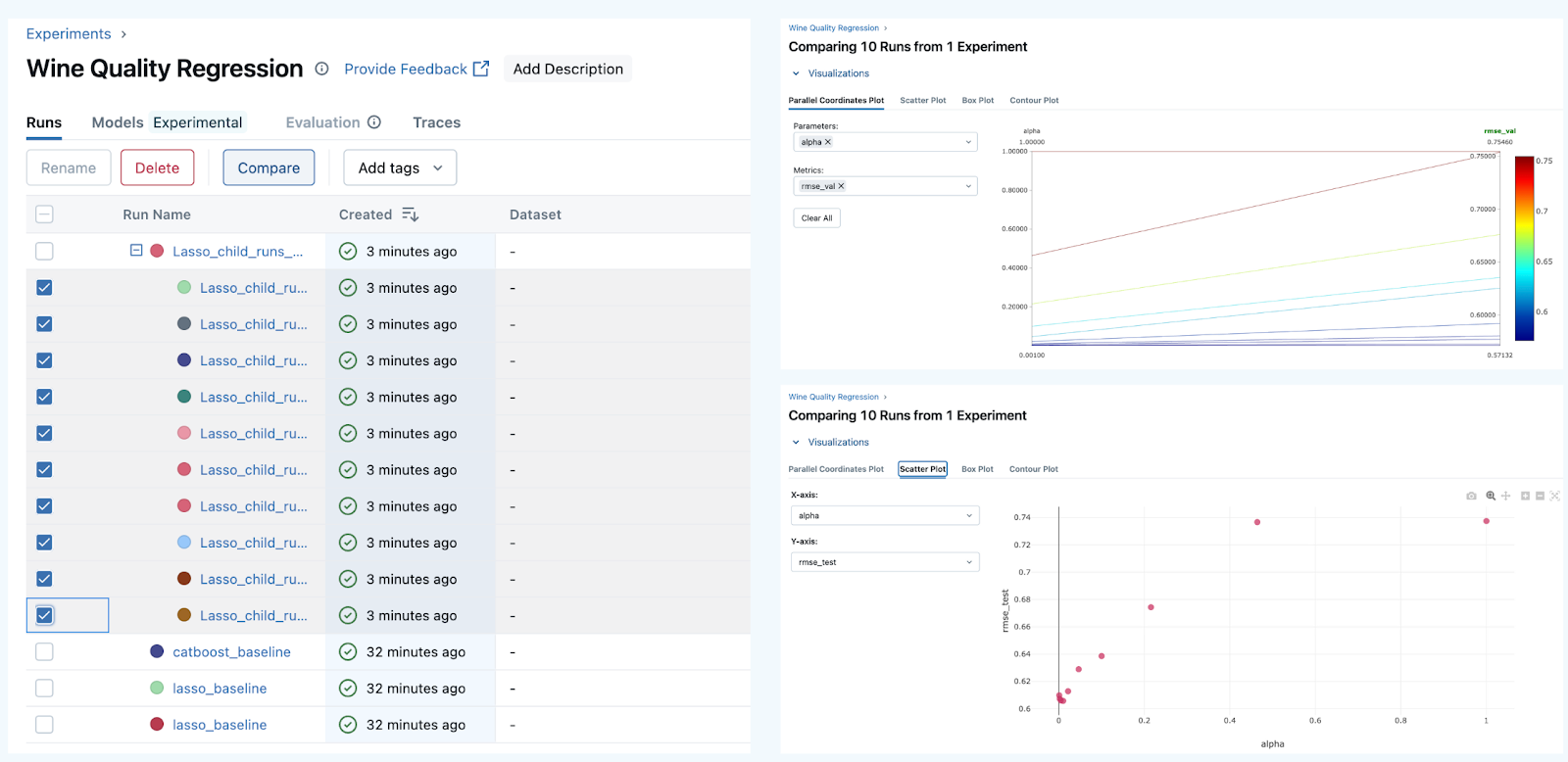
Awesome! Now, we keep our hierarchy and UI clean, make a lot of experiments, and efficiently compare them.
MLflow Child Runs with Optuna Hyperparameter Tuning
Let's now make things a little bit more complex.
Let's say we want to tune a CatBoost model and want to use Optuna library for this.
Optuna uses Bayesian Optimization under the hood in order to select the best set of hyperparameters. Let's take a quick look at how it does that.
Bayesian Optimization is an approach to finding the minimum of a black-box function using probabilistic models to select the next sampling point based on the results of the previous samples.
Here are the main steps Bayesian Optimization takes (the gif below shows this process dynamically):
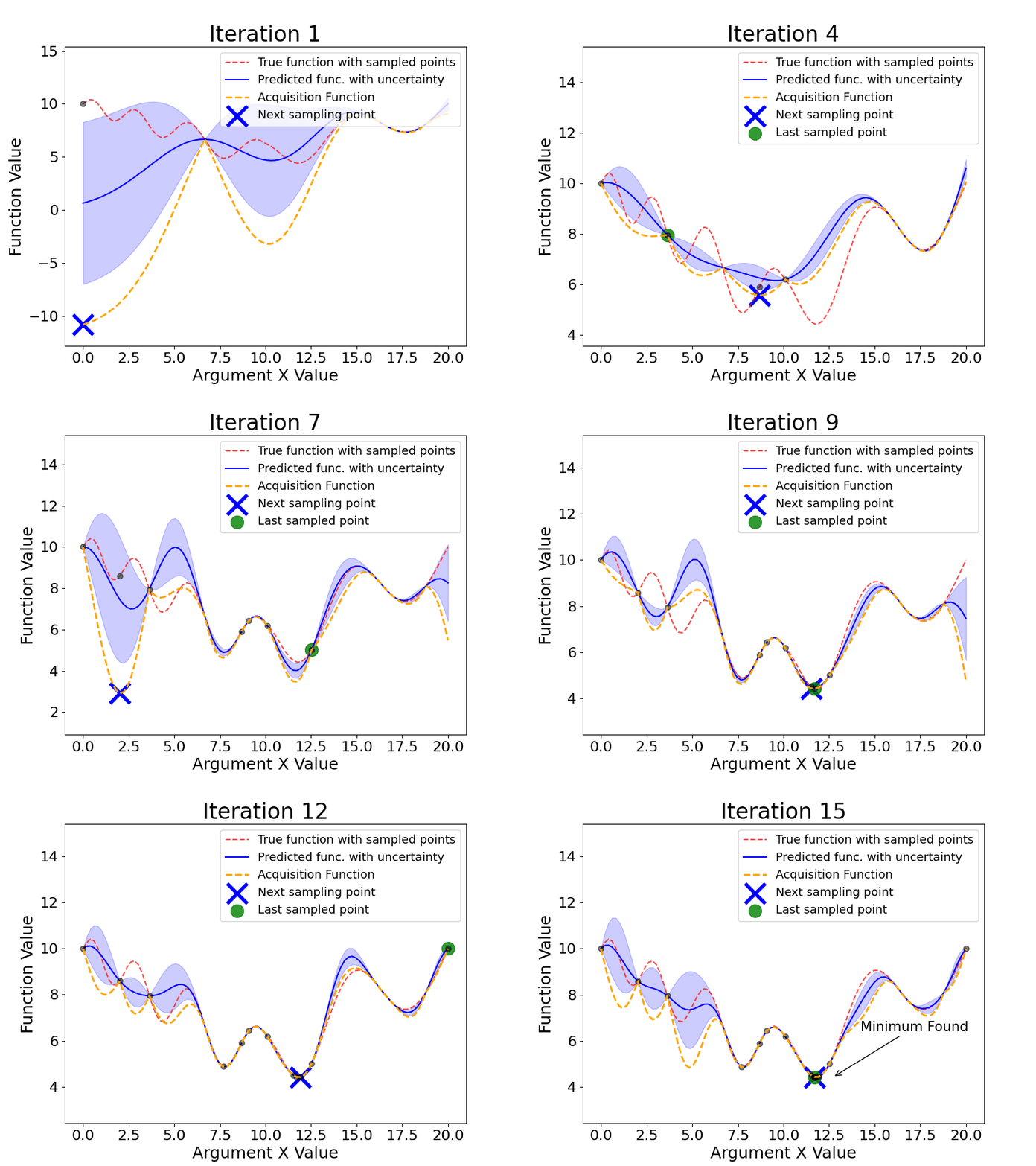
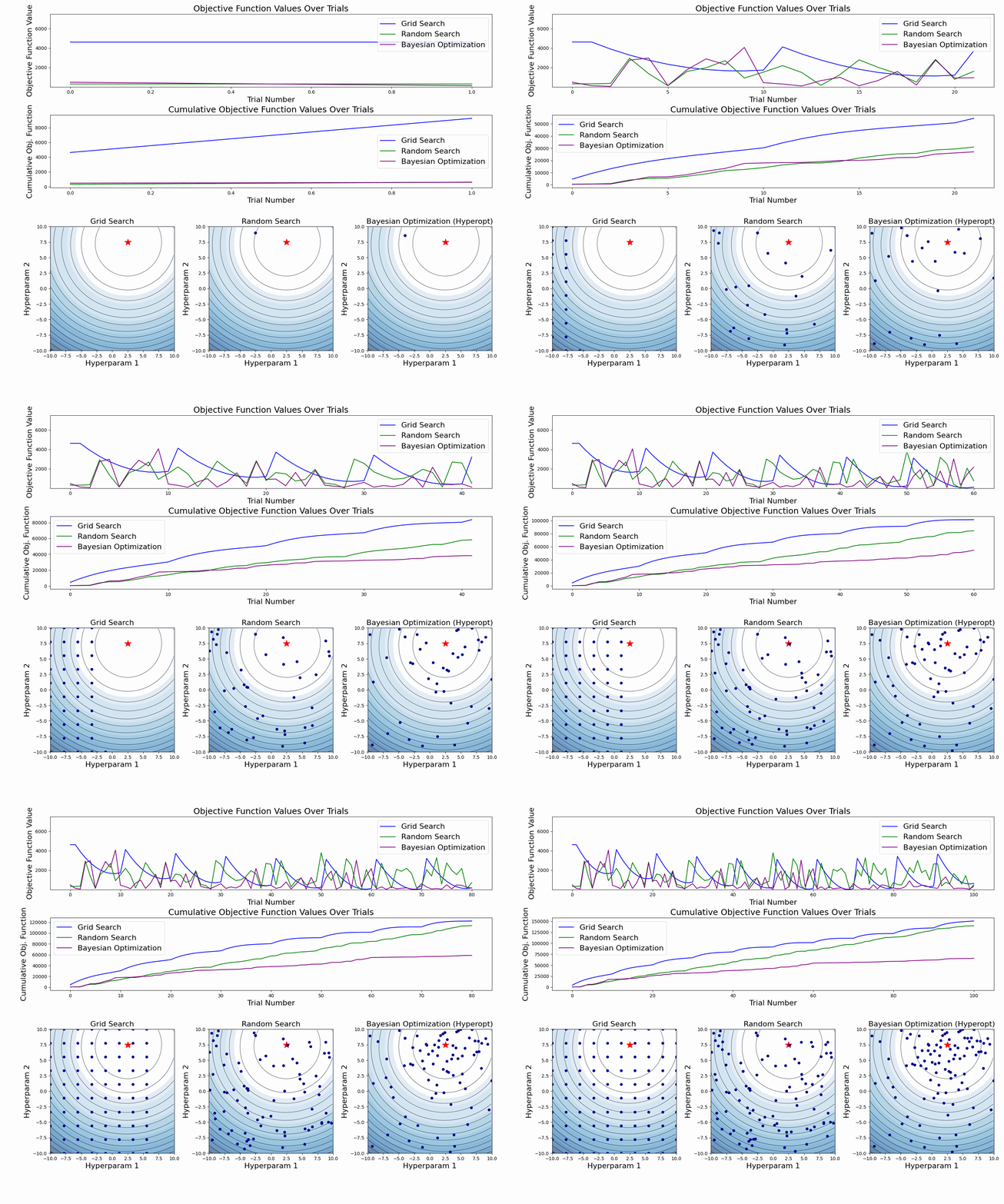
As we see, Bayesian Optimization aims to iteratively optimize the given objective function. In contrast, the two most frequent hyperparameter optimization approaches either follow the pre-specified values (Grid Search) or randomly sample the search space (Random Search).
The example below compares the three approaches. As we can see, the cumulative value of the objective function of the Bayesian Optimization is much lower and converges to some value over time. This means that the quality of samples that Bayesian Optimization performs is higher (can also be seen on the first subplot).
Note: The example below uses Hyperopt (Optuna alternative), but the idea behind it is the same.
Now, as we know a little bit about how Optuna works, let's use it with MLflow.
For this, we need to do two things. First, we need to define the objective function that Optuna will try to optimize. In our case, this is an error in the validation set. For the metric, we will choose RMSE. Within the objective function, we will:
- train the model
- compute the metrics on the validation set
- log the run as a child run
- return the validation RMSE error
def objective(
    trial: optuna.Trial,
    x_train: np.ndarray,
    y_train: np.ndarray,
    x_val: np.ndarray,
    y_val: np.ndarray,
    x_test: np.ndarray,
    y_test: np.ndarray
) -> float:
    np.random.seed(42)
    """Optimize CatBoost hyperparameters using Optuna."""
    # Sample CatBoost hyperparameters (fixed iterations for faster trials)
    params: Dict[str, Union[int, float, bool]] = {
        'iterations': 100,  # Fixed iterations for trials
        'learning_rate': trial.suggest_float('learning_rate', 0.01, 0.3, log=True),
        'depth': trial.suggest_int('depth', 4, 10),
        'l2_leaf_reg': trial.suggest_float('l2_leaf_reg', 1, 10),
        'random_seed': 42,
        'verbose': False
    }

    model: CatBoostRegressor = CatBoostRegressor(**params)
    model.fit(x_train, y_train)

    # Predictions
    y_pred_val: np.ndarray = model.predict(x_val)
    y_pred_test: np.ndarray = model.predict(x_test)

    # Errors
    rmse_val: float = np.sqrt(mean_squared_error(y_val, y_pred_val))
    rmse_test: float = np.sqrt(mean_squared_error(y_test, y_pred_test))

    # Log the run with log_run_child
    log_run_child(
        run_name=run_name,
        params=params,
        metrics={'rmse_val': rmse_val, 'rmse_test': rmse_test},
        tags={'model_version': 'catboost_optuna', 'trial': trial.number},
        trained_model=model,
        model_type='CatBoost',
        iteration=trial.number
    )

    return round(rmse_val, 3)
We will run 50 Optuna trials, meaning that we will train the model 50 times and then select the best run. A good practice is to use a fixed value for the number of Gradient Boosting trees when tuning other hyperparameters. Then, finetune this number using early stopping. This is what we will do.
Finally, we will re-train the model on the entire train set (i.e., including the validation set that has been used for tuning) and compute the test set RMSE.
run_name = 'Catboost_optuna'
with mlflow.start_run(run_name=run_name):
    np.random.seed(42)
    # Create the study and optimize
    study = optuna.create_study(direction="minimize", sampler=optuna.samplers.TPESampler(seed=42))
    study.optimize(
        lambda trial: objective(trial, x_train, y_train, x_val, y_val, x_test, y_test),
        n_trials=50
    )

    # Log the best metrics and parameters from the parent run
    mlflow.log_metric("best_rmse", study.best_value)
    mlflow.log_params(study.best_params)
    mlflow.set_tag('best_model', 'true')

    # Train the best model with early stopping (more iterations)
    best_params = study.best_params.copy()
    best_params.update({
        'iterations': 1000,  # More iterations for final model
        'early_stopping_rounds': 50,  # Early stopping
    })

    best_model = CatBoostRegressor(**best_params, random_seed=42)
    best_model.fit(x_train, y_train, eval_set=[(x_val, y_val)], verbose=False)

    # Compute test score for the best model
    y_pred_test = best_model.predict(x_test)
    rmse_test = np.sqrt(mean_squared_error(y_test, y_pred_test))

    # Log the test score
    mlflow.log_metric("rmse_test_best", rmse_test)

    # Log the best model in the parent run
    model_info = mlflow.sklearn.log_model(
        sk_model=best_model,
        name="best_catboost_model",
        input_example=x_train,
        tags={'best_model': 'true'}
    )

    print(f"Best validation RMSE: {study.best_value:.4f}")
    print(f"Test RMSE: {rmse_test:.4f}")
After the runs, we can compare them and see the tendencies of which parameters produced us the best results:
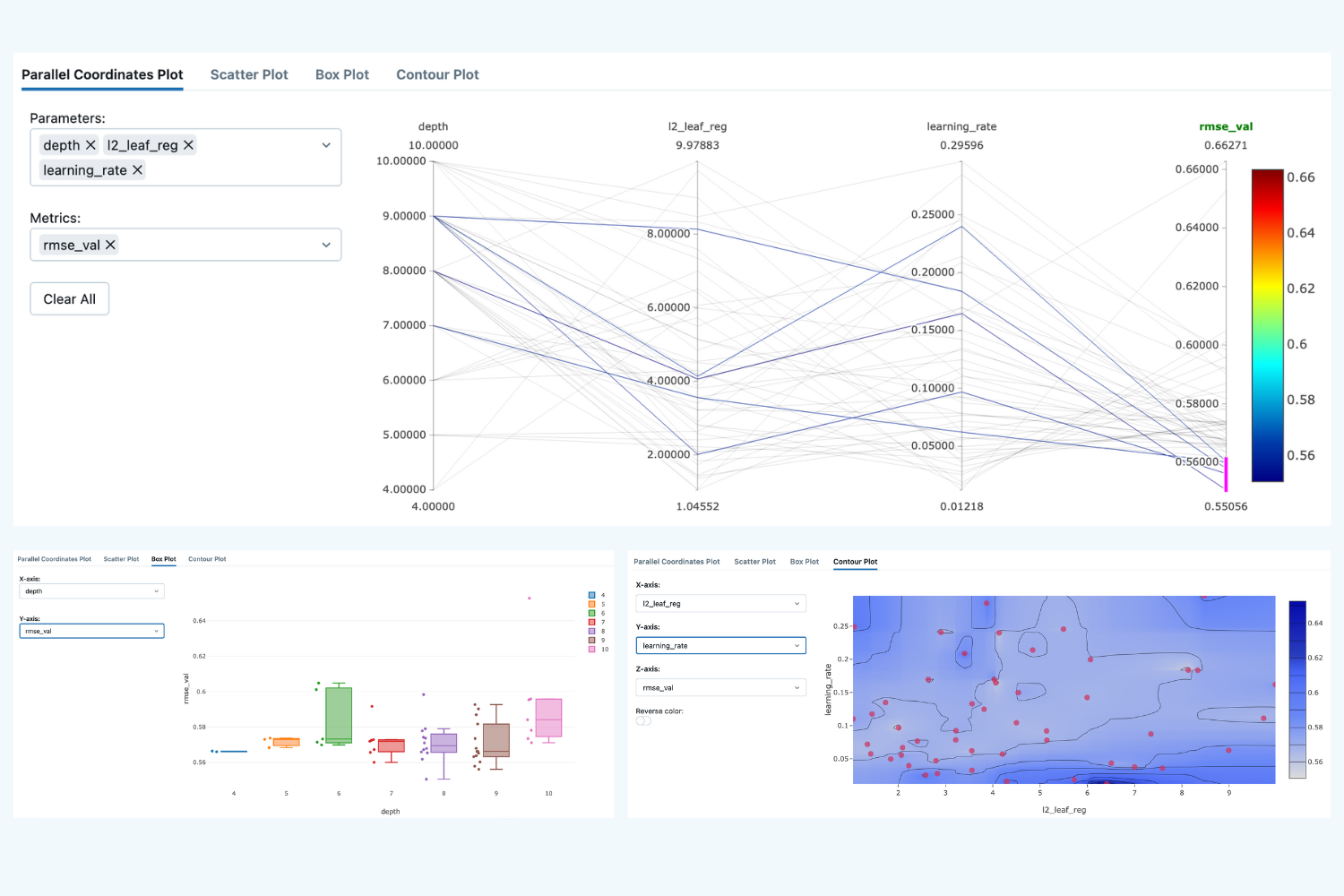
Here we see that the lowest validation scores have been produced over a wide range of hyperparameters, so it's hard to draw any valid conclusion.
Pro Tip:
To make reproducible results, you need to specify the random seed in several places: in Numpy, in Optuna, and in CatBoost. See the code for the details.
Now, note that when we run the parent run, we re-train the best optuna model on the entire training set and log a tag - best_mode: true. This allows us to easily load the best model, use it for predictions and consider moving the model to production.
# Search across all logged models for the tag
top_models = mlflow.search_logged_models(
    filter_string="tags.best_model = 'true'",
    order_by=[{"field_name": "last_updated_timestamp", "ascending": False}],
    max_results=1
)

# Get the latest "best_model"
best_model = top_models.iloc[0]

# Extract the model URI
model_uri = best_model['model_id']

# Load it
loaded_model = mlflow.pyfunc.load_model(f'models:/{model_uri}')

# Use it
y_pred = loaded_model.predict(x_test)
rmse_test = np.sqrt(mean_squared_error(y_test, y_pred))
print(f"RMSE on test set: {rmse_test}")
So, we have done a great job and advanced our understanding of how to run MLflow child runs using Optuna. Now, let's look at how we can log different artifacts, input model examples, and other files that are important to track and then use in the production environment.
Beyond basics - what do you need to log to MLflow?
In the examples above, in addition to the models and default metadata, we also logged model metrics and model parameters. However, this is not enough to ensure that our models are reproducible in the production environment. In the next sections, we will learn how to log some more essential data to make our ML pipelines more robust.
Model Signatures and Input Examples
Model signatures and input examples are foundational components that define how your models should be used, ensuring consistent and reliable interactions across MLflow's ecosystem.
Model Signature - Defines the expected format for model inputs, outputs, and parameters. Think of it as a contract that specifies exactly what data your model expects and what it will return.
Model Input Example - Provides a concrete example of valid model input. This helps developers understand the required data format and validates that your model works correctly.
Why Signatures Matter
- Validation → When you load the model, MLflow checks if the provided data matches the signature.
- Serving → If you deploy via MLflow Model Serving, the API auto-generates schemas based on the signature.
- Reproducibility → Clear documentation of what the model expects.
- Portability → Makes it easier to share models across teams.
MLflow allows us to easily log signatures and input examples. Below, you see that we can infer the signatures from our data using the infer_signature helper and then log it using log_model method together with the input example.
# Load datasets
df = pd.read_csv('WineQT.csv', sep=',')

# Split the data into training, validation, and test sets
train, test = train_test_split(df, test_size=0.25, random_state=42)
x_train = train.drop(["quality"], axis=1).values
y_train = train[["quality"]].values.ravel()
x_test= test.drop(["quality"], axis=1).values
y_test = test[["quality"]].values.ravel()

# Split the data into training and validation sets
x_train, x_val, y_train, y_val = train_test_split(
    x_train, y_train, test_size=0.2, random_state=42
)

# Setting hyperparameters for CatBoost
catboost_params = {
    'iterations': 100,
    'learning_rate': 0.1,
    'depth': 6,
    'random_seed': 42,
    'verbose': False
}

# Train the model and make predictions
model = CatBoostRegressor(**catboost_params)
model.fit(x_train, y_train)
y_pred_test = model.predict(x_test)

# Infer signature from data
signature = infer_signature(x_test, y_pred_test)
input_example = x_train[:5]

# Start an MLflow run
with mlflow.start_run(run_name='catboost_with_signature'):

    # Log CatBoost model with model example and signature
        model_info = mlflow.catboost.log_model(
            cb_model=trained_model,
            name="wine_model_catboost",
            input_example=input_example,
            signature=signature
        )
Logging artifacts
In addition to the model artifact that is logged by default, we can also log other artifacts, such as feature scalers, plots, or other useful files. Let's make an example with a Lasso model, a standard scaler, and a prediction plot.
# --- Single parameter for Lasso
alpha = 0.01

# --- Fit scaler separately
scaler = StandardScaler()
X_train_scaled = scaler.fit_transform(x_train)
X_test_scaled  = scaler.transform(x_test)

# --- Fit Lasso
model = Lasso(alpha=alpha, random_state=42, max_iter=10000)
model.fit(X_train_scaled, y_train)
y_pred_test = model.predict(X_test_scaled)

# --- Signature & input example (raw features as input)
signature = infer_signature(x_test, y_pred_test)
input_example = x_train[:5]

# --- Local paths for artifacts
run_tmp = Path("mlflow_local_artifacts") / str(uuid.uuid4())
run_tmp.mkdir(parents=True, exist_ok=True)
scaler_path = run_tmp / "standard_scaler.pkl"
plot_path   = run_tmp / "pred_vs_true.png"

# Save scaler separately
joblib.dump(scaler, scaler_path)
and
# --- Plot Predicted vs True
plt.figure(figsize=(6, 6))
plt.scatter(y_test, y_pred_test, alpha=0.6)
plt.xlabel("True values")
plt.ylabel("Predicted values")
plt.title("Predicted vs. True (Lasso)")
axis_min = min(np.min(y_test), np.min(y_pred_test))
axis_max = max(np.max(y_test), np.max(y_pred_test))
plt.plot([axis_min, axis_max], [axis_min, axis_max], linestyle="--")
plt.tight_layout()
plt.savefig(plot_path, dpi=150)
plt.close()

# --- MLflow logging
with mlflow.start_run(run_name="lasso_artifacts"):
    # Log artifacts (scaler + plot)
    mlflow.log_artifact(str(scaler_path), artifact_path="artifacts")
    mlflow.log_artifact(str(plot_path),   artifact_path="artifacts")

    # Log Lasso model (trained on scaled inputs)
    model_info = mlflow.sklearn.log_model(
        sk_model=model,
        name="wine_model_lasso",
        signature=signature,
        input_example=input_example
    )
Awesome! Now, we can access artifacts both programmatically and from the User Interface.
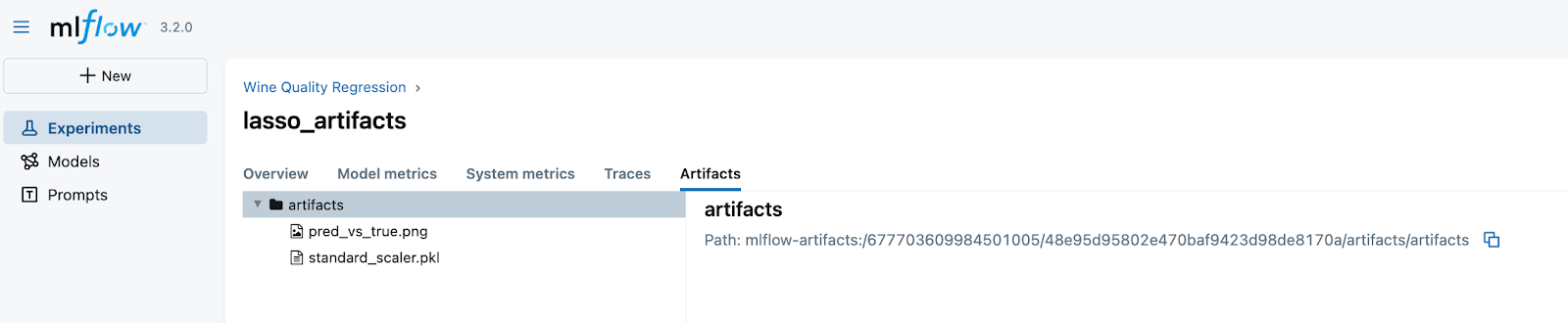
That is it for this part of the tutorial! In the next part, we will consider the MLFlow Model registry concept, how to register the models both programmatically and from the UI, and how to use tags and aliases to make it handy.
Recap
Ok, let's recap what we learned:
1. What is ML Experiment Tracking and why we need it
2. How to create an instance of MLflow Tracking Server and point to it using a URI.
3. How to create an experiment and ML runs.
4. How to log parameters for an ML run and compare parameters and performance between the runs.
5. How to programmatically load the best model among all the runs within an experiment and use this model to make predictions.
6. How parent–child runs bring structure and clarity to experiment tracking.
7. How to log additional artifacts (scalers, plots, signatures, input examples) makes experiments reproducible and production-ready.
8. How these practices improve traceability, scalability, and portability of ML projects.
.png)
Ready to transform your ML career?
Join ML Academy and access free ML Courses, weekly hands-on guides & ML Community